
How To · Software · Technoogies · Web Dev · WordPress
How to Export WordPress Compatible SVG Images From Adobe Illustrator
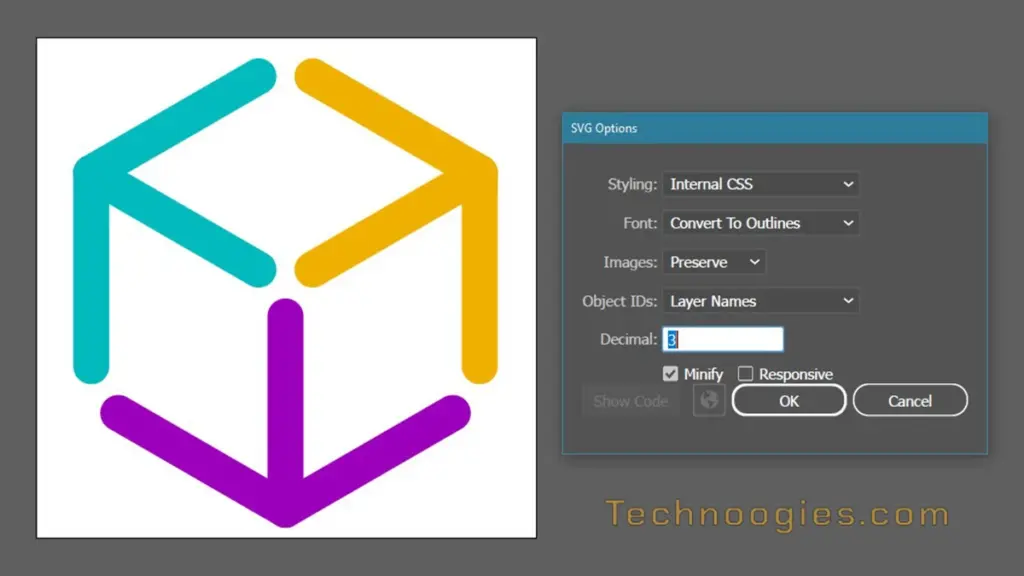
WordPress can be picky about the properties of your SVG images, so it is good to know how to make your Adobe Illustrator exports more compatible with WordPress and the web in general. An even bigger issue are plugins. For example, WP Portfolio, in it’s lightbox, ONLY works with width, height, and viewbox being set in the SVG opening tag. Without these attributes it will cause layout issues and just be an empty space in the lightbox viewer. Also, without these being set, WordPress and all sites in general can deliver some really weird results in display and alignment of the SVG file.
By default, WordPress does not allow SVG upload for security reasons because SVG files are XML format, and that can allow bad voodoo code to be inserted into them and executed in your site. And for this reason, make sure your SVG files are either from a trusted source, or of your own making when you enable SVG uploads into your WordPress site.
Ways to enable SVG uploads to WordPress.
- Add custom code (See Snippet Below) to your functions.php file in your theme or insert it into your site with a code insertion plugin like WPCodeBox or WPCode.
- Use an SVG plugin to handle it, like SVG Support, WP SVG Images, or Safe SVG.
One advantage to the plugins over adding a code snippet is the ability to enable a feature that most have called “sanitization” which cleans out anything not related to SVG image and <svg> tag. One of the drawbacks to sanitization is that it can sometimes break you SVG images. But If you are adding SVG files from unkown sources, this is the way to do it. Also, if you understand the SVG XML format, then you can open the SVG image and inspect it yourself for any unrelated code, but who has time for that. Just don’t use unknown source files and save yourself a lot of headaches.
Allow SVG Upload Snippet
Allow SVG Files Upload – WPCode Library
This snippet enables SVG uploads for admin accounts only.
/**
 * Allow SVG uploads for administrator users.
 *
 * @param array $upload_mimes Allowed mime types.
 *
 * @return mixed
 */
add_filter(
	'upload_mimes',
	function ( $upload_mimes ) {
		// By default, only administrator users are allowed to add SVGs.
		// To enable more user types edit or comment the lines below but beware of
		// the security risks if you allow any user to upload SVG files.
		if ( ! current_user_can( 'administrator' ) ) {
			return $upload_mimes;
		}

		$upload_mimes['svg']  = 'image/svg+xml';
		$upload_mimes['svgz'] = 'image/svg+xml';

		return $upload_mimes;
	}
);

/**
 * Add SVG files mime check.
 *
 * @param array        $wp_check_filetype_and_ext Values for the extension, mime type, and corrected filename.
 * @param string       $file Full path to the file.
 * @param string       $filename The name of the file (may differ from $file due to $file being in a tmp directory).
 * @param string[]     $mimes Array of mime types keyed by their file extension regex.
 * @param string|false $real_mime The actual mime type or false if the type cannot be determined.
 */
add_filter(
	'wp_check_filetype_and_ext',
	function ( $wp_check_filetype_and_ext, $file, $filename, $mimes, $real_mime ) {

		if ( ! $wp_check_filetype_and_ext['type'] ) {

			$check_filetype  = wp_check_filetype( $filename, $mimes );
			$ext             = $check_filetype['ext'];
			$type            = $check_filetype['type'];
			$proper_filename = $filename;

			if ( $type && 0 === strpos( $type, 'image/' ) && 'svg' !== $ext ) {
				$ext  = false;
				$type = false;
			}

			$wp_check_filetype_and_ext = compact( 'ext', 'type', 'proper_filename' );
		}

		return $wp_check_filetype_and_ext;

	},
	10,
	5
);
Characteristics and behaviors of SVG files in Web Browsers
The purpose of this section is to show how SVG files vary in behavior when the characteristics of the Adobe Illustrator export are changed.
On each SVG I’ve placed a border around it to show boundary of the viewbox area and a border around the HTML containing box it resides in. The top images are centered in the section, no columns. The two images below the first are in columns of two different sized boxes of 2/3rds and 1/3rd.
 Illustrator File Specs:
1000px X 1000px
Horizontal / Vertical Centered
Using Lines : 72.061 px Stroke
  (Was 72 px,  Illustrator altered them on centering)
Rounded Caps
Adobe Illustrator SVG Export.
Artboard, Non-responsive, Non-minified
This is my preferred method of Adobe Illustrator SVG export, without minification. If you have a large, very graphical SVG export, then minification will make it smaller and is therefore preferred. But I like to be able to edit SVG files directly if needed, and minification is difficult to read. It’s up to you, though. (VS Code will add formatting and line breaks to minified SVG/XML files btw)
<svg id="a" data-name="Colorized" xmlns="http://www.w3.org/2000/svg" width="1000" height="1000" viewBox="0 0 1000 1000">
2/3 Column
1/3 Column
Adobe Illustrator SVG Export.
Artboard, Non-responsive, Minified
The only change is “minification” being added, which does not change the behavior of the SVG

2/3 Column
1/3 Column
Adobe Illustrator SVG Export.
Artboard, Responsive, Non-minified
Why does the first image shrink up like this? It has no width and height in the SVG so it gets squished from the other boxes in the section box. The images below are expanding to the size of the box they are in; That’s all the space the browser sees as available for that block. If I added another column then they would get smaller or larger depending on the width of the column.
When exported this way, the artboard size becomes the viewbox size. There is no width and height in the SVG.
<svg id="a" data-name="Colorized" xmlns="http://www.w3.org/2000/svg" viewBox="0 0 1000 1000">
2/3 Column
1/3 Column
50% – 25% – 15% – 10%
Artboard, Responsive, Non-minified
Artboard, Responsive, Non-minified
Artboard, Responsive, Non-minified
Artboard, Responsive, Non-minified
Adobe Illustrator SVG Export.
No Artboard, Responsive, Non-minified
Notice the boundary of the image where there is a border around it. Why is there extra padding on the bottom and right of the SVG file? I don’t know; It has magic numbers put into it from Adobe Illustrator and I just can’t make sense of it. Why does it do that? I’m totally open to have your comments on this issue.
<svg id="a" data-name="Colorized" xmlns="http://www.w3.org/2000/svg" viewBox="0 0 1084.6019 1211.1453">
2/3 Column
1/3 Column
Adobe Illustrator SVG Export.
No Artboard, Non-responsive, Non-minified
Same here, but this one is non-responsive in addition to no artboard. Notice the boundary of the image where ther is a border around it. Why is there extra padding on the bottom of the SVG file? Adobe Illustrator magic numbers again.
<svg id="a" data-name="Colorized" xmlns="http://www.w3.org/2000/svg" width="1084.6019" height="1182.3638" viewBox="0 0 1084.6019 1182.3638">
2/3 Column
1/3 Column
Adobe Illustrator SVG Export.
Manual Edit, No Artboard, Responsive, Non-minified
Same again, but this one I edited the viewbox numbers and is also non-responsive in addition to no artboard. I set the viewbox to the exact dimensions of the artwork, including the stroke width and rounded caps. I have no explanation for this behavior of clipping the width like it does . . . Just wierd. The browsers change the image dimensions as it is displayed, but if you look at the source, it is viewBox=”0 0 849 938″.
<svg id="a" data-name="Colorized" xmlns="http://www.w3.org/2000/svg" viewBox="0 0 849 938">
2/3 Column
1/3 Column
Adobe Illustrator SVG Export Settings
In general, responsive SVG’s will display in WordPress. But as I said at the start, there are plugins that won’t display them unless they height and with set for the artwork and the viewbox. Let’s get started on the Illustrator export settings.
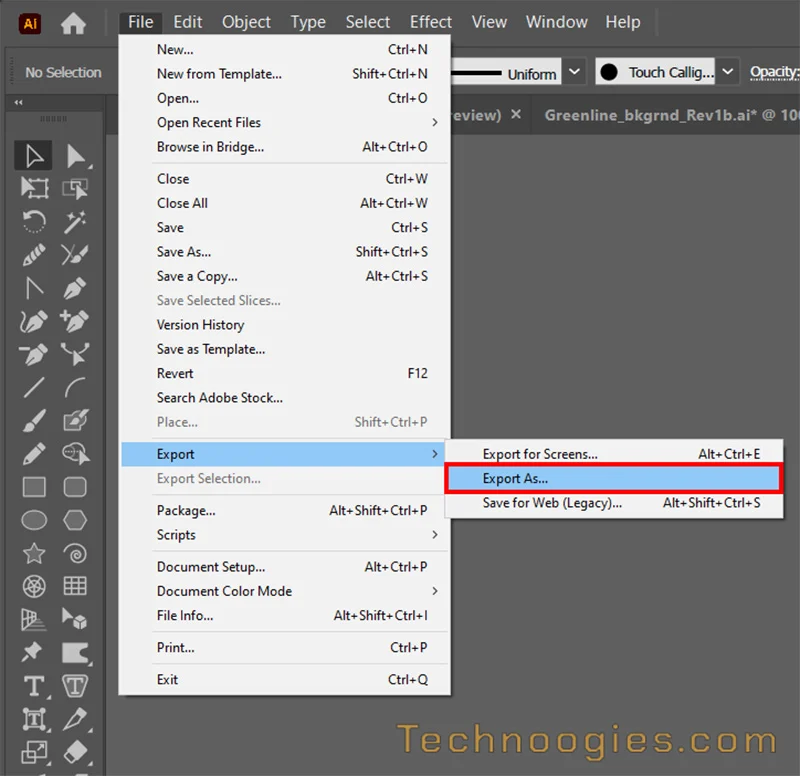
Illustrator Menu – Export > Export As…
From the top left menu, select File > Export > Export As…
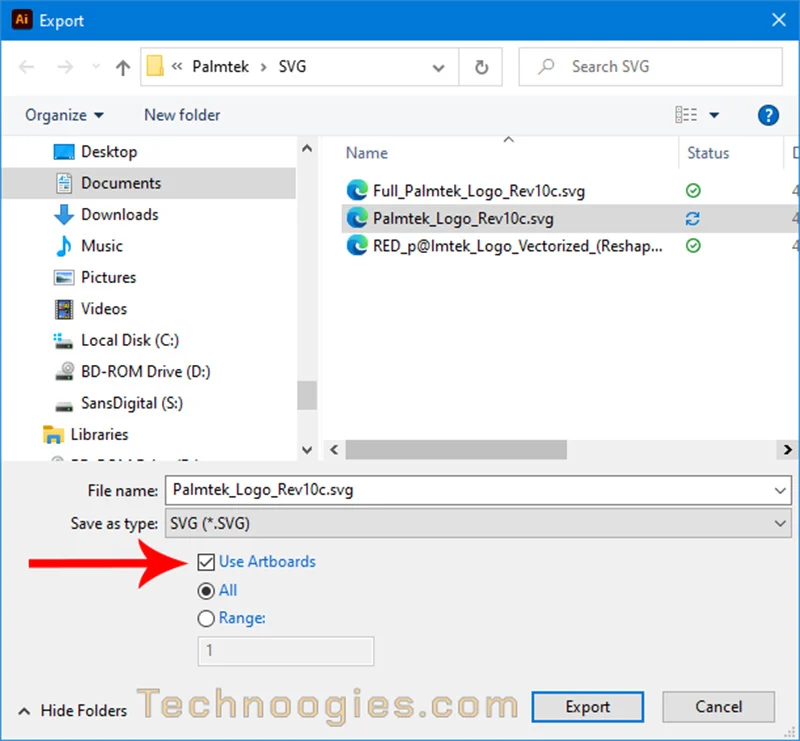
Select “Artboards” in the Export Dialog
This screenshot shows the Adobe Illustrator file export dialog, highlighting the option to use artboards for exporting a design as an SVG file. The default is “All”, but “Range” allows you to control which artboards are exported. If you select Range and leave the ‘1’ it will export the first artboard. If you use ‘2’ then the second artboard will be exported, etc. You can set a Range by using something like ‘2-4’ to export artboards 2 through 4. If you use commas, like ‘1,3,4’ then you will export the first, third, and fourth artboards.
When your done configuring “Use Artboards”, Click on Export.
SVG Export Options Dialog
The SVG Options Dialog is now open. These are the settings to optimize your SVG export for optimal WordPress compatibility.
- Styling: Internal CSS
- Font: Convert To Outlines
- Images: Preserve
- Decimal: 3 or greater (Greater if artifacts appear in the image)
- Minify: Optional
- Responsive: Unchecked
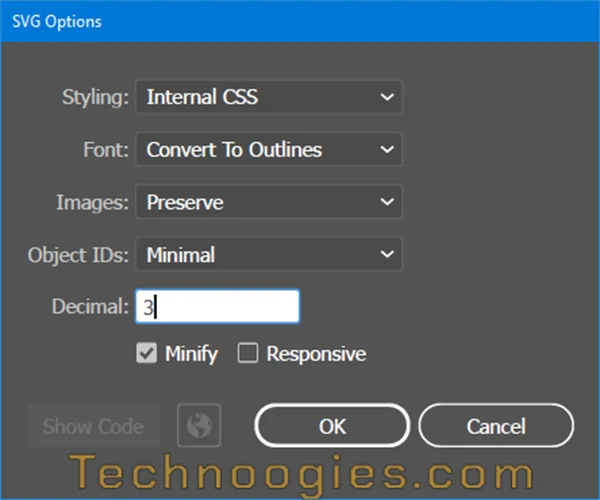
The advantage of using a lower precision Decimal setting is to reduce the file size. However, it can sometimes produce artifacts in the exported image. I usually start with a Decimal setting of 3.
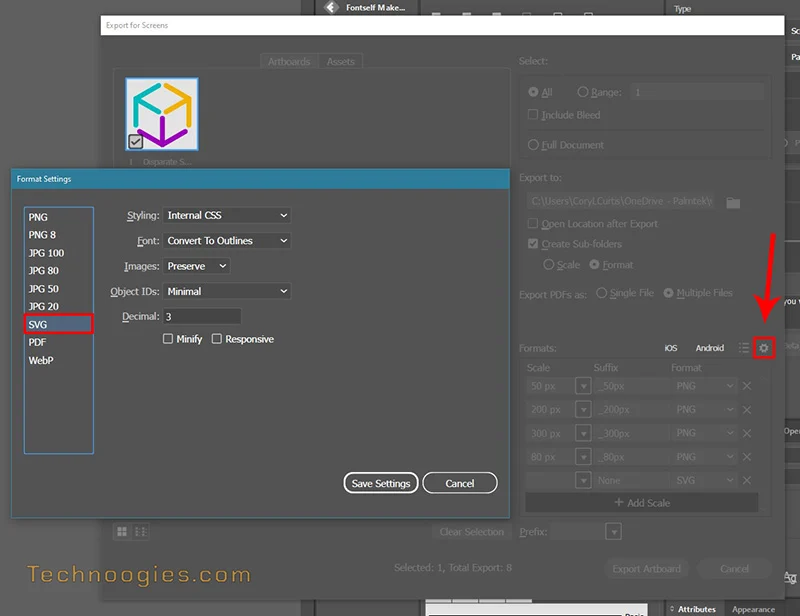
SVG Export for Screens – Global Options Dialog
Now for the bonus export info.
When using the Export For Screens option, which is right above Export As… in the menu, it is possible to set global settings for SVG’s and other images so they are set according to your preferences. Once global settings are configured you will not need to make adjustments to the settings unless you need something different in your exports. This feature is big time saver to your export workflow.
Look for the Gear on the right side of the dialog close to the center of the top and bottom. Click on it to open the Format Settings dialog and select the SVG option on the left side. The options are the same as a the SVG Options dialog. Click on Save Settings to permenantly save your changes.
Summary
WordPress can be fussy about SVG properties, requiring specific attributes like width, height, and viewbox to avoid layout issues, especially when using plugins like WP Portfolio like I experienced. Remember, to upload SVGs safely to WordPress, you can add custom code to your functions.php file or use plugins like SVG Support, which offer sanitization but might occasionally break the images. To ensure compatibility, configure Adobe Illustrator’s export settings as outlined and you should save yourself from freaky format failures, and consider setting global export options for efficiency and consistency in your workflow.


Leave a Reply