
Operating Systems
Fixing “Mismatch between the tag specified and the tag present in the reparse point”
A more complete and thorough solution
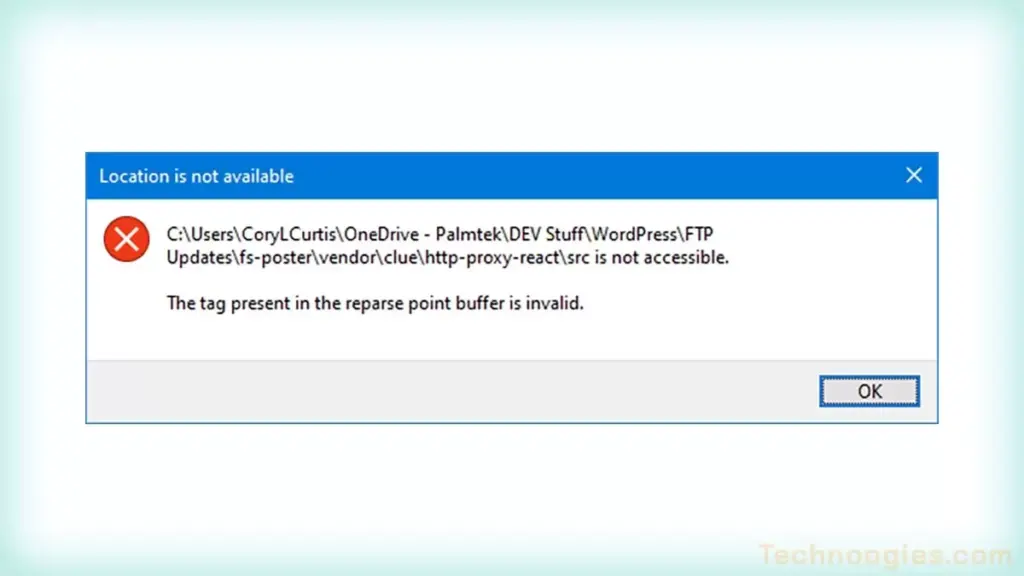
“There is a mismatch between the tag specified in the request and the tag present in the reparse point”, is the full error message you get after clicking on a folder with a corrupted reparse point.
Sometimes you just can’t delete a file or directory, but let’s not focus on the details of the problem, just the solution. Suffice it to say its usually a file corruption issue; though occasionally it’s caused by too long of a file path structure or reserved name conflict due to some kind of POSIX hell.
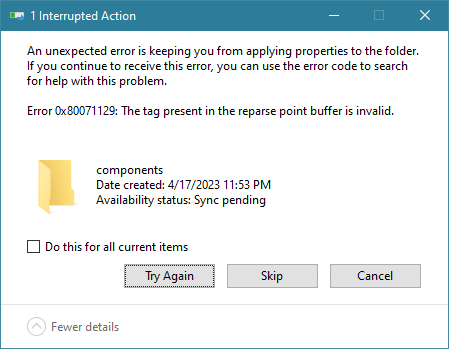
I just ran into such a problem trying to delete a folder from OneDrive and it’s sub-folders. It would not give me an error and would not remove the folder in my Windows 10 workstation. Not until I navigated down to the bottom directory and tried to delete the specific sub folder did I obtain the error above. Undeterred, I tried to delete it from the command line with rm and got this, “rm: cannot remove ‘src’: Input/output error“.
So I set the dirty bit to run chkdsk C: /f /r on the reboot. These switches do two things, /F is the repair switch, /R checks for bad sectors and copies the data to a new location and takes a long time to run, so use it as a last resort. But I couldn’t get it to run. It would go through the motions, but you can’t chkdsk C: /f /r on a nearly 1 TB volume in 14 seconds. I tried about all of the chkdsk variations, but couldn’t achieve a real scan and couldn’t delete the folder. Strange, but to be resolved later (Bad NvME drive?). I suspect that I’m not the only one who’s had this problem.
The Solution
Solution 1: CHKDSK On Reboot
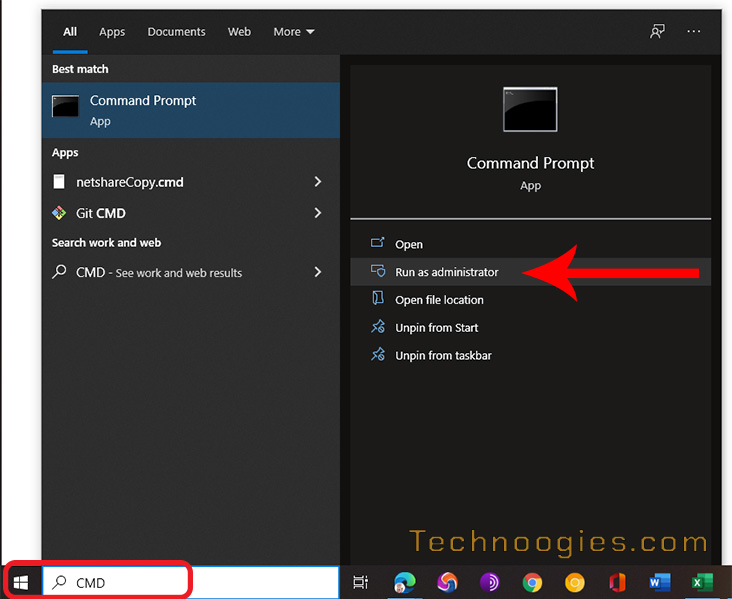
From the Windows Start Menu type “CMD” in the “Search Bar“, then select “Run as administrator“.
At the command prompt type “CHCDSK C: /F /R“, press enter and then press “Y” to acknowledge you would like CHKDSK to run on a Reboot. Save your work and rebook the system. You should be able to manage your files now.
Solution 2: Safe Mode Command Prompt
If your corrupted file system is on the same drive that Windows is installed on and a simple reboot scan isn’t working then the next best options are Safe Mode or an alternate boot media, like a USB drive with one of the options further below.
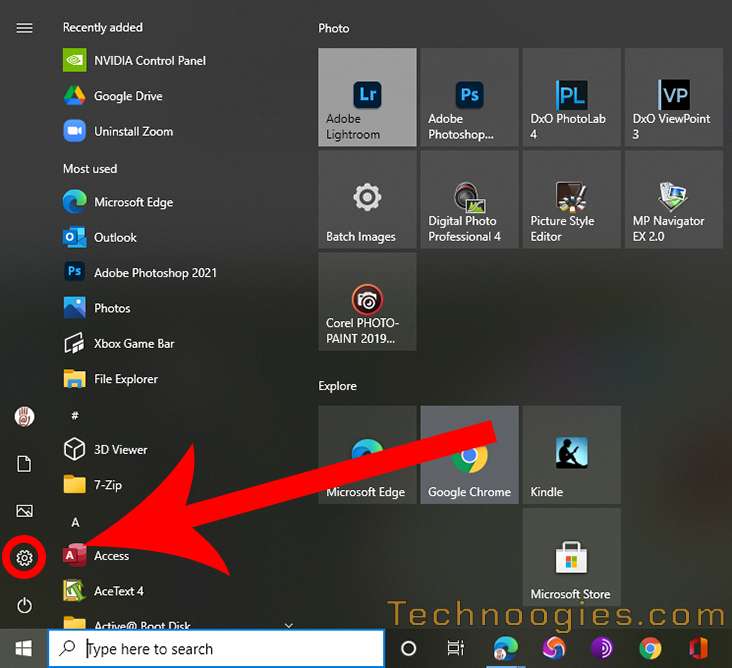
- Open “Start” and select the “Settings” icon. It looks like a gear.
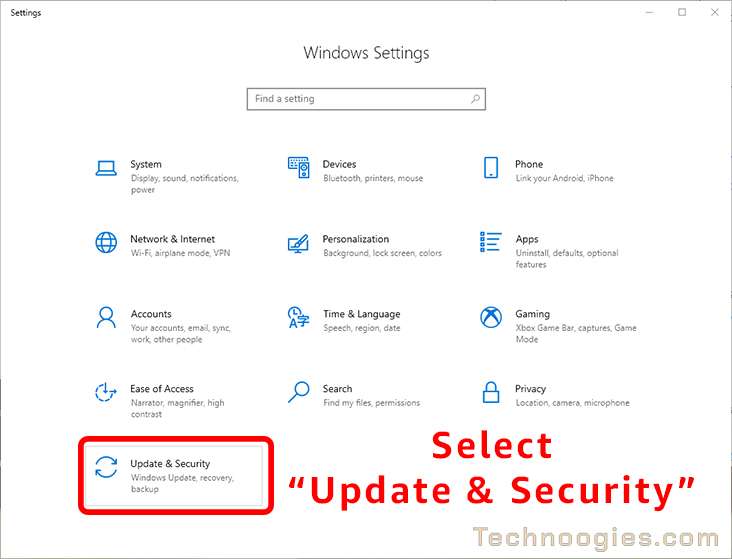
- Click on “Update & Security“.
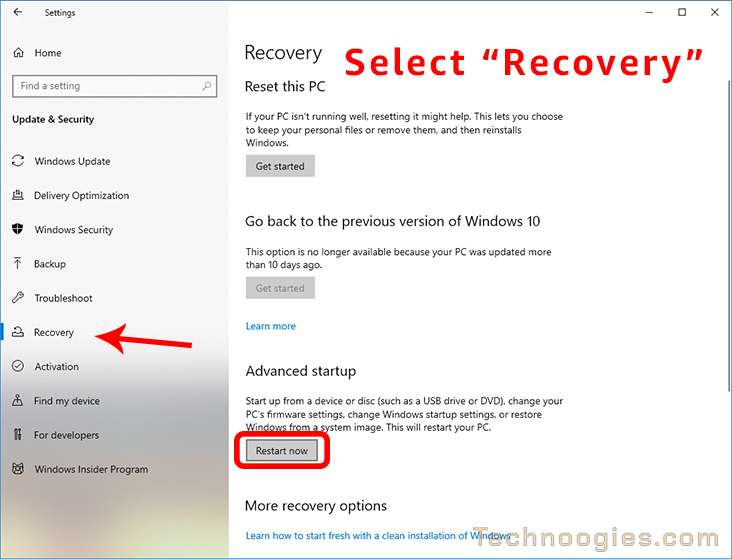
- On the left side of the panel, select “Recovery“. Click on the button that says “Restart Now“, but make sure your work is all saved before you do because this will cause the system to reboot.
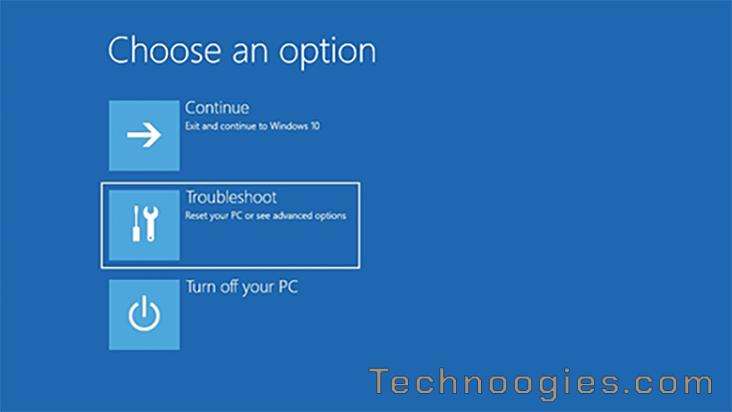
- You might need to login before you get to the command prompt depending on your system configuration. When you arrive at this screen, click on the item labeled “Troubleshoot“.
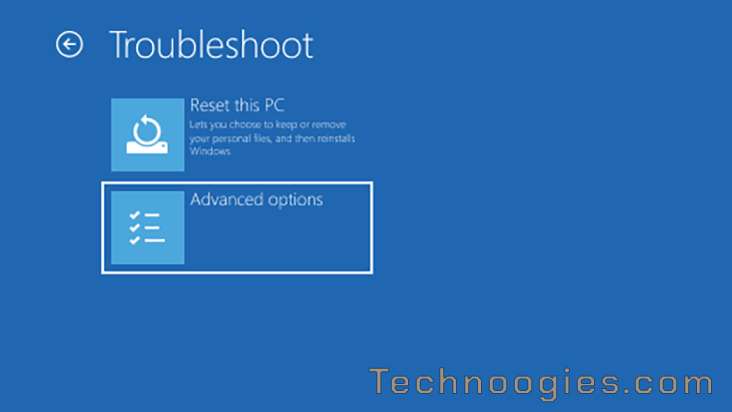
- Next, click on “Advanced Options“.
- Now click on “Command Prompt“.
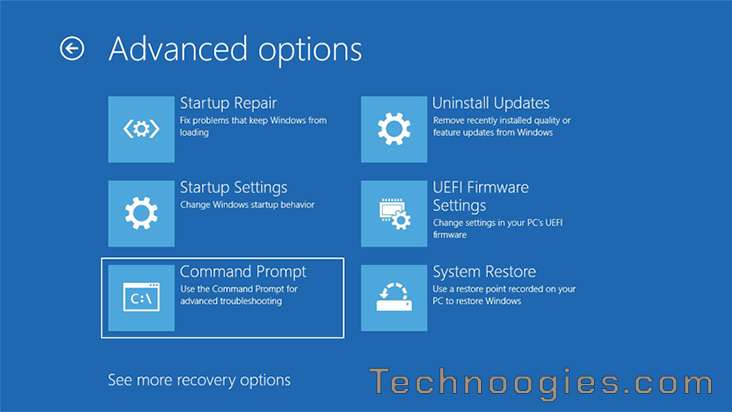
- You should now be at the Command Prompt. Type in CHKDSK C: /F and press enter. (If your drive volume isn’t C: then substitute your drive letter here. Example: D: E: F: or whatever you drive letter is.)
- When the errors are repaired, type “Exit” and press enter. You’ll be back at “Choose an option“, select “Continue“.
- I placed the other CHKDSK switches in this post just in case you might need to do other operations while you are there, like /sdcleanup.
If That Didn’t Work, Then . . .
Solution 3: Run CHKDSK From Boot Media
Use Boot media with Windows PE or Windows RE to run CHKDSK from. For reasons unknown, the CHKDSK on the reboot doesn’t fix the reparse points in the file system. To be fair, the native OS has worked for some, but has never worked for me, so I just use an alternate boot device and run CHKDSK from it.
Some Alternative Boot Options
- Hiren’s BootCD PE
- Microsoft PE (Instructions)
- Active Boot (Costs some moolah, but easy to load drivers with)
I’ve been using Active Boot for more than 15 years so I opted to boot to a USB drive with raid drivers installed. This allowed me to run a full CHKDSK with CHKDSK (DriveLetter): /scan /perf. Problem solved and the folder was able to be deleted. Now to figure out why the native OS couldn’t run CHKDSK. The results will look something like this if there is a reparse error involved.
Solution 4: Reset OneDrive
To reset the OneDrive desktop sync app in Windows
- Open a Run dialog by pressing Windows key

and R. - Copy this and paste it into the dialog window, then press OK.
%localappdata%\Microsoft\OneDrive\onedrive.exe /reset
If you see a “Windows cannot find…” message, copy and paste this instead, then press OK.
“C:\Program Files\Microsoft OneDrive\onedrive.exe /reset”
If you see a “Windows cannot find…” message, copy and paste this instead, then press OK.
“C:\Program Files (x86)\Microsoft OneDrive\onedrive.exe /reset”
(Be sure to keep the quotes when you copy and past, or type this in the command line.) - Manually restart OneDrive by going to Start
, type OneDrive in the search box, and then click on the OneDrive desktop app.
From Reset OneDrive (microsoft.com)
Your results should resemble this
The type of the file system is NTFS.

Stage 1: Examining basic file system structure ...
Deleting corrupt attribute record (0xC0, "")
from file record segment 0x1A97CB.
Deleting corrupt attribute record (0xC0, "")
from file record segment 0x1F65EC.
Deleting corrupt attribute record (0xC0, "")
from file record segment 0x22735D.
  2488832 file records processed.
File verification completed.
  22125 large file records processed.
  0 bad file records processed.

Stage 2: Examining file name linkage ...
Correcting reparse point file record segment 1A97CB.
Correcting reparse point file record segment 1F65EC.
Correcting reparse point file record segment 22735D.
Deleting an index entry from index $R of file 1A.
Deleting an index entry from index $R of file 1A.
Deleting an index entry from index $R of file 1A.
  712194 reparse records processed.
  3043510 index entries processed.
Index verification completed.
  0 unindexed files scanned.
  0 unindexed files recovered to lost and found.
  712194 reparse records processed.

Stage 3: Examining security descriptors ...
Security descriptor verification completed.
  277340 data files processed.
CHKDSK is verifying Usn Journal...
Usn Journal verification completed.

Windows has made corrections to the file system.
No further action is required.

Leave a Reply