
How To · Web Dev · WordPress
The Definitive Guide for Cloudflare Free and Page Rules
You only get three free rules.
What are your best options?
What is Cloudflare?
Cloudflare is a Content Delivery Network or CDN. Instead of your server having to serve up every file with each new, non-cached browser request, the CDN sends it from it’s network instead. This saves a bitload (pun) of data and time. There are many available but free is hard to pass up when your a small player in a cutthroat internet. A big part of SEO also depends on speed, as in how fast your page gets loaded, and if your on a shared hosting service then you should consider using a CDN like Cloudflare, which will speed up the delivery of your static content in mind blowing ways.
This guide is focusing on a WordPress site configuration for Cloudflare in general. I haven’t researched the best use configuration for WooCommerce on Cloudflare Free as yet, but these rules should work just as well in WooCommerce or any other eCommerce plugin for WordPress.
Also, this isn’t a WordPress beginner article, but if your willing to try, and search out the details, you’ll figure it out. Always ask questions and ignore the pompous self appointed Internet Gods (StackOverFlow.com) that tend to flame the little people. If I forgot to cover something here, tell me, or just ask questions in the comment section or contact form.
What needs to be in place to begin?
- Create a free Cloudflare account. (Signup)
- Add your domain to the account and change your name servers at your domain registrar to the ones Cloudflare lists in your setup dialog.
- Your site should use DNS from Cloudflare in proxy mode (orange icon) to avoid issues and is required to use every aspect of page rules. More so for the paid version that allows URL forwarding. See “Why isn’t a Page Rule working?
Why Do I Need Cloudflare’s Page Rules?
Page Rules give you more control over how Cloudflare works on a URL, domain, or subdomain. With Page Rules, you can customize Cloudflare’s functionality to better match your domain’s needs. This way, you can ensure that your website is running more smoothly, efficiently, faster, and more secure.
How many rules do I get?
| Plan | Page rules allowed |
|---|---|
| Free | 3 |
| Pro | 20 |
| Business | 50 |
| Enterprise | 125 |
You can purchase additional rules (up to a maximum of 100) for domains in the Free, Pro, and Business plans. Rules are priced at $5 for each additional set of 5 rules, so 25 additional rules would be $25 dollars.
A few considerations
I will not go into explanations of all rule features or settings. Please review the Cloudflare Tutorial for that information. I’m only going to explain the one’s we will use in this tutorial, but for quick reference I will include the descriptions table from Cloudflare’s tutorial also, just in case you want to experiment with other rule settings.
The menu location info is based on the new Cloudflare interface.
SSL Settings
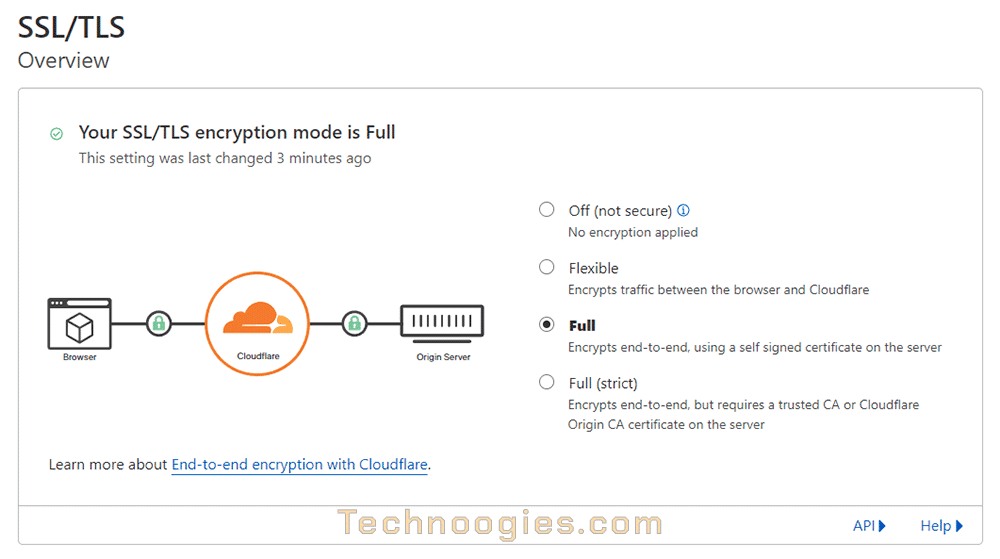
SSL/TLS encryption mode
LOCATION: SSL > Overview
The recommended choices are “Full” or “Strict”.
Full
Encrypts end-to-end, using a self signed certificate on the server/host.
Full (strict)
Encrypts end-to-end, but requires a trusted CA or Cloudflare Origin CA certificate on the server/host.
SSL Certificates – If you don’t have one
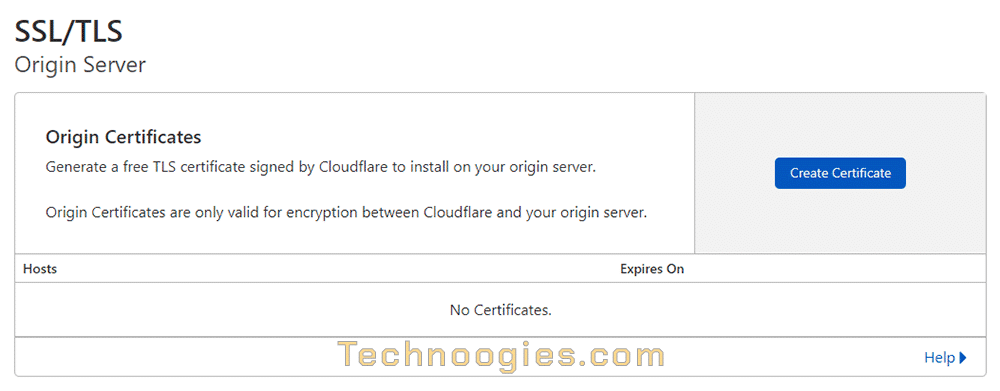
LOCATION: SSL/TLS > Origin Server
If you already have an SSL certificate on your web host then you can skip this.
Cloudflare Origin Certificates
Generate a free TLS certificate signed by Cloudflare to install on your origin server. Just click the “Create Certificate” button and follow the steps given by Cloudflare. The only encryption levels are currently RSA (2048) and ECC.
Speed Settings
LOCATION: Speed > Optimization
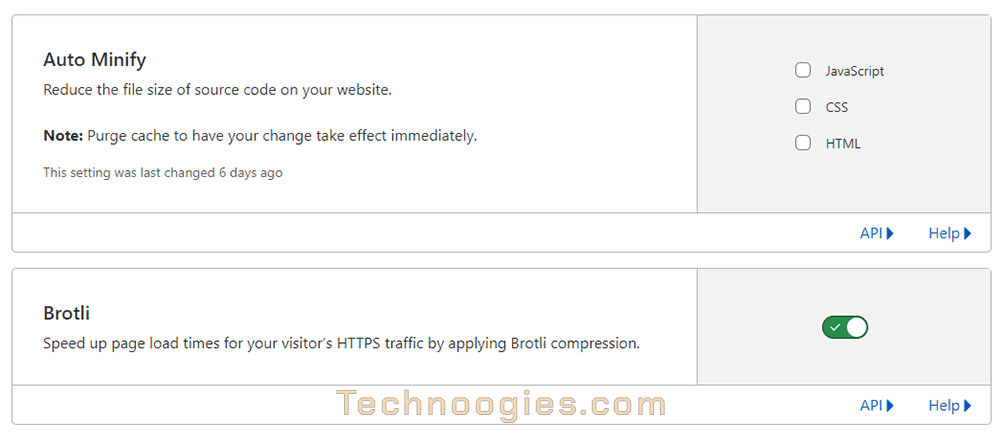
Auto Minify
OFF on the Optimization page (Control it in a Page Rule)
The Cloudflare default for WordPress is enabled. If I decide to enable this, I prefer to control this setting in the last Page Rule. That way I know minification will not be an issue in my admin area or page builders.
I typically leave Auto Minify set to OFF because in my experience, if you are using a plugin to minify these items, a plugin controls it better, and running it on Cloudflare slowed my sites down a tad. Run your own tests though to be sure for your particular site and plugins used, you might have a different experience. I use WP Rocket which is arguably the best for smaller WordPress sites, and Cloudflare is then getting pre-minified files to distribute across it’s network, no extra file handling needed. Also, I can control exclusions that way, which really is the biggest bonus to server-side WordPress plugin minification.
If you do not have a caching plugin, you could turn these on at this setting, or set them to off and then turn them on in the third Page Rule (recommended).
Brotli Compression
Definitely ON.
Brotli is a modern, efficient lossless compression format supported by all major browsers. It offers better compression ratios than gzip and is gaining popularity rapidly. Cloudflare uses the Google Brotli library to compress web content dynamically whenever possible.
Rocket Loader™
LOCATION: Speed > Optimization (Scroll Down)

Turn this one OFF
Even Cloudflare’s default for WordPress is off.
Rocket Loader prioritizes your website’s content (text, images, fonts etc) by deferring the loading of all of your JavaScript until after rendering.
This type of loading (known as asynchronous loading) leads to earlier rendering of your page content. Rocket Loader handles both inline and external scripts, while maintaining order of execution.
Scrape Shield
Location: Scrape Shield (Bottom Left Menu)
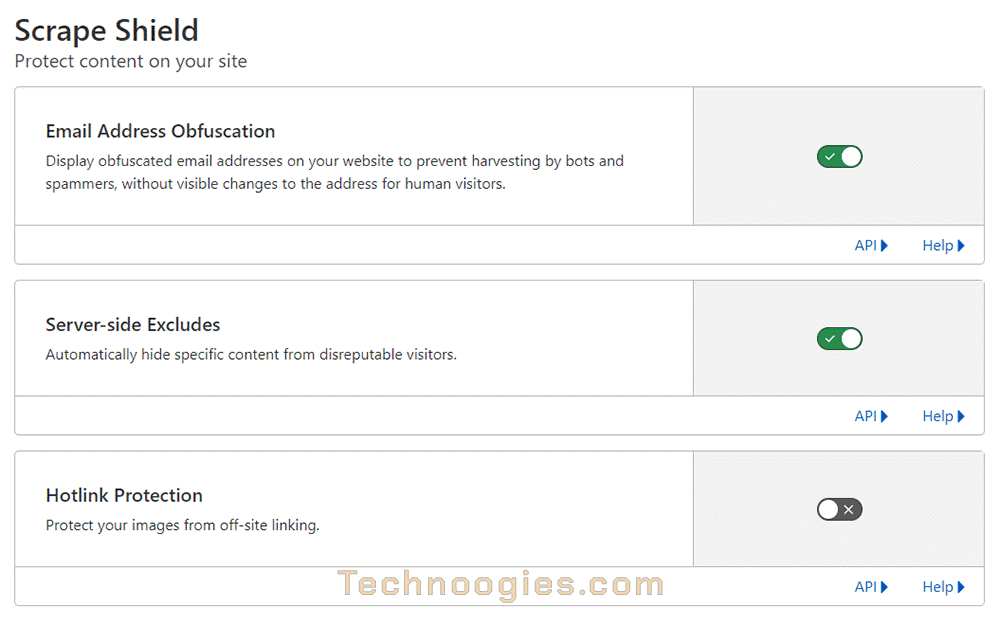
Scrape Shield has three settings that protect email addresses, images, and anything you enclose in the SSE tags. Each has it’s own on/off switch to enable or disable the feature.
Although Email Address Obfuscation and Server-side Excludes are enabled here, I like to include them in my rules, just as an insurance that they stay on in the event they are disabled here somehow. Call me paranoid, but Cloudflare defaults have changed without warning before.
Email Address Obfuscation
Definitely ON.
Displays obfuscated email addresses on your website to prevent harvesting by bots and spammers, without visible changes to the address for human visitors.
Email harvesters and other bots roam the Internet looking for email addresses to add to lists that target recipients for spam. This trend results in an increasing amount of unwanted email.
Web administrators have come up with clever ways to protect against this by writing out email addresses (i.e., help [at] cloudflare [dot] com) or by using embedded images of the email address. However, you lose the convenience of clicking on the email address to automatically send an email. By enabling Cloudflare Email Address Obfuscation, email addresses on your web page will be obfuscated (hidden) from bots, while keeping them visible to humans. In fact, there are no visible changes to your website for visitors.
Server-side Excludes
Good to have enabled whether you use it or not.
Automatically hide specific content from disreputable visitors. This is done in special HTML tags.
Example: <!–sse–>555-555-5555<!–/sse–>
Hotlink Protection
Optional, your preference. (See “Hotlink Warning” to help you decide.)
Protects your images from off-site linking.
Hotlink Protection prevents your images from being used by other sites. This can reduce the bandwidth consumed by your origin server.
When Cloudflare receives an image request for your site, it checks to ensure the request did not originate from visitors on another site. Visitors to your domain will still be able to download and view images.
Supported file extensions: gif, ico, jpg, jpeg, and png.
Page Rules
LOCATION: Rules > Page Rules
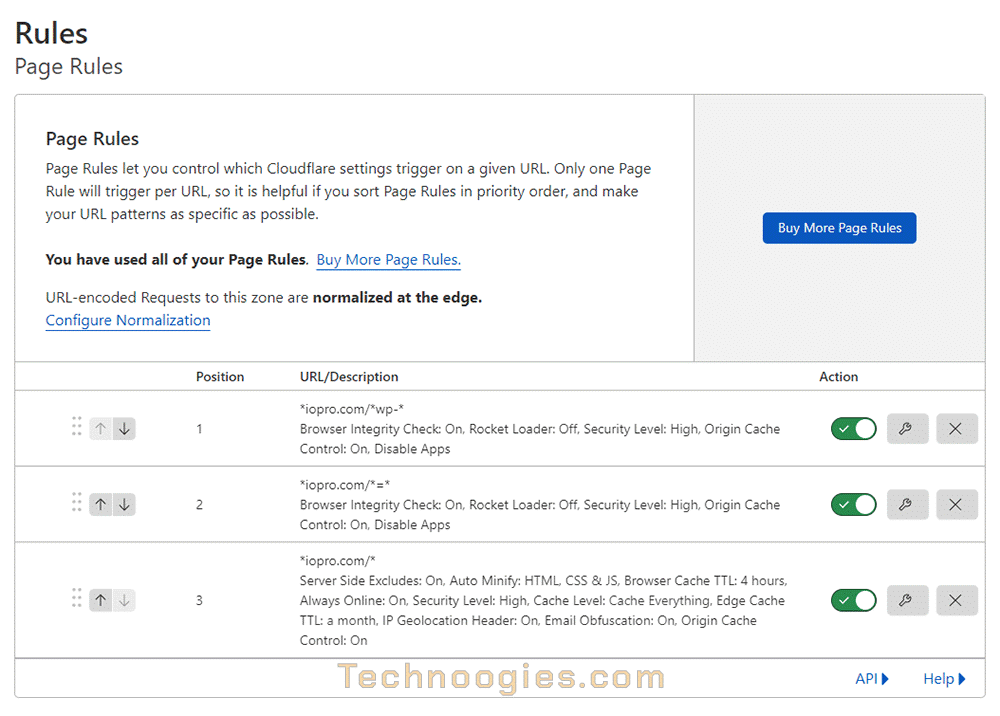
Understanding The Page Rule Sequence
Only one Page Rule will fire and take effect on a URL request. With that in mind, you’d want any rule with admin, page tools, or “Bypass Cache” before a “Cache Everything” wildcard rule. Page rules are prioritized in descending order in the Cloudflare dashboard, with the highest priority rule at the top. Only the highest priority matching page rule takes effect on a request. Which is to say, Page Rules execute in order from top to bottom. Once there is a match no other rules are evaluated, so if you want something specific to happen, that rule should be first.
The steps to create a page rule are:
- Log in to the Cloudflare dashboard.
- Select the domain where you want to add the page rule.
- Click the Rules app. (Left Menu)
- In the Page Rules tab, click Create Page Rule. The Create Page Rule for <your domain> dialog opens.
- Under If the URL matches, enter the URL or URL pattern that should match the rule. Learn more about wildcard matching
- Next, under Then the settings are: click + Add a Setting and select the desired setting from the dropdown. You can include more than one setting per rule. Learn more about settings in the summary below.
- In the Order dropdown, specify the desired order: First, Last or Custom.
- To save, click one of the following options:
- Save as Draft to save the rule and leave it disabled.
- Save and Deploy to save the rule and enable it immediately.
Defining The Page Rule Options Used
Listed by sequence of execution (matches the images)
- Browser Integrity Check: On
Browser Integrity Check (BIC) operates similar to bad behavior and looks for common HTTP headers abused most commonly by spammers and denies access to your page. It also challenges visitors without a user agent or with a non-standard user agent such as commonly used by abusive bots, crawlers, or visitors. - Server Side Excludes: On
If there is sensitive content on your website that you want visible to real visitors, but that you want to hide from suspicious visitors, wrap the content with Cloudflare Server-Side Excludes (SSE) tags.
EXAMPLE:
<!–sse–> Bad visitors won’t see my phone number, 555-555-5555 <!–/sse–>
- Auto Minify: Off (Unchecked)
Auto Minify will remove all unnecessary characters from HTML, JavaScript, and CSS files. It is better to minify with a good plugin, but WordPress serves minified files by default unless you disable this in wp-config.php. Most plugins use minified files now also. On vs off is more of a personal preference than an absolute. If it works for you and speeds up your site then go for it.
- Rocket Loader: Off
Covered in detail in the Speed section above, but if for some reason you have this on by default, unless we turn it off in the Admin Area you will not be able to administrate WordPress. - Browser Cache TTL: 4 hours
The Browser Cache TTL sets the expiration for resources cached in a visitor’s browser. By default, Cloudflare honors the cache expiration set in your Expires and Cache-Control headers but overrides those headers if:
- The value of the Cache-Control header from the origin web server is less than the Browser Cache TTL Cloudflare setting.
- The origin web server does not send a Cache-Control or an Expires header.
Unless specifically set in a page rule, Cloudflare does not override or insert Cache-Control headers if you set Browser Cache TTL to Respect Existing Headers.
- Always Online: On
Cloudflare’s Always Online feature is now integrated with the Internet Archive so that visitors can access a portion of your website even when your origin server is unreachable and a Cloudflare-cached version is unavailable. When your origin is unreachable, Always Online checks Cloudflare’s cache for a stale or expired version of your website. If a version does not exist, Cloudflare goes to the Internet Archive to fetch and serve static portions of your website.
When Always Online with Internet Archive integration is enabled, visitors see a banner at the top of the web page explaining they are visiting an archived version of the website. Visitors can click the Refresh button to check whether the origin has recovered and fresh content is available.
Limits vary according to your Cloudflare plan, and the Always Online crawler ignoresrobots.txt.
- Free customers once every 30 days.
- Pro customers once every 15 days.
- Business and Enterprise customers once every 5 days.
- Security Level: High
Security Level uses the IP reputation of a visitor to decide whether to present a Managed Challenge page. Once the visitor enters the correct Managed Challenge, they receive the appropriate website resources.
The options are:
- Essentially Off
- Low
- Medium
- High
- I’m Under Attack! (Only for DDoS attacks)
- Cache Level: Cache Everything
By default, Cloudflare does not cache HTML pages. However, by configuring Cloudflare to cache “Everything”, HTML pages generated by WordPress will then be cached by Cloudflare. This improves website performance by reducing the load on your origin server because it won’t need to generate the HTML with each visit. A good caching plugin helps reduce this also, but now your origin server won’t even need to deliver the HTML at all.
Apply custom caching based on the option selected:
- Bypass – Cloudflare does not cache.
- No Query String – Delivers resources from cache when there is no query string.
- Ignore Query String – Delivers the same resource to everyone independent of the query string.
- Standard – Caches all static content that has a query string.
- Cache Everything – Treats all content as static and caches all file types beyond the Cloudflare default cached content. Respects cache headers from the origin web server unless Edge Cache TTL is also set in the Page Rule. When combined with an Edge Cache TTL > 0, Cache Everything removes cookies from the origin web server response. (But the “Free Plan” minimum Edge Cache TTL is 2 hours)
- Edge Cache TTL: a month
(1 month is the maximum, 2hrs minimum for a free account)
If your content is rapidly changing, shorter is better. Longer helps reduce requests to your host.
Edge Cache TTL (Time to Live) specifies how long to cache a resource in the Cloudflare edge network. Edge Cache TTL is not visible in response headers and the minimum Edge Cache TTL depends on plan type.
If your host service uses Imunify360 firewall services then do not use Edge Cache. (Open Link)
- Free – 2 hours
- Pro – 1 hour
- Business – 1 second
- Enterprise – 1 second
- IP Geolocation Header: On
Cloudflare adds a CF-IPCountry HTTP header containing the country code that corresponds to the visitor. - Email Obfuscation: On
Cloudflare Email Address Obfuscation helps in spam prevention by hiding email addresses appearing in your pages from email harvesters and other bots, while remaining visible to your site visitors. - Origin Cache Control: On
Origin Cache Control · About
Honors the cache headers from the origin server . . . mostly, sort of, maybe.
(There’s a lot of stuff that goes on here, I’ll leave it at that.) - Disable Apps
Turn off all active Cloudflare Apps.
Cloudflare Page Rules for WordPress Admin Area
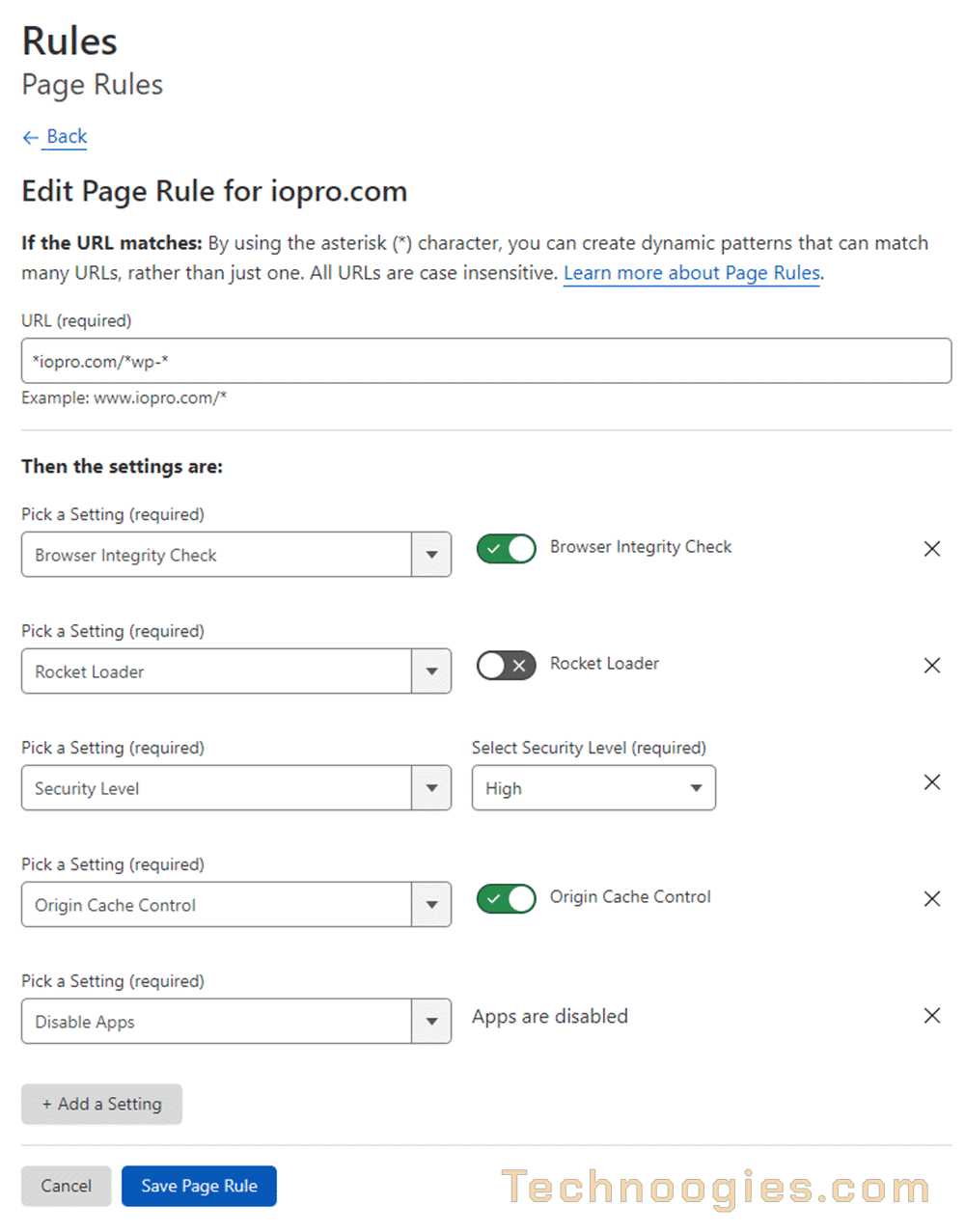
Rule 1 URL = *technoogies.com/*wp-*
Rule 1 is to make the WordPress admin area behave when logged in to it. It also adds an increased level of security to protect the most privileged part of your website. The reason we do not need to bypass cache here is because of the “Origin Cache Control” being enabled. The origin headers will be delivered by WordPress for the admin login, so it should be good ol’ default tried and true headers for the admin area. All other areas like wp-content will pass through this rule unscathed and cacheable by the 3rd rule.
Rule 1 Settings
- Browser Integrity Check: ON
- Rocket Loader™: OFF
- Security Level: HIGH
- Origin Cache Control: ON
- Disable Apps: (Active by adding it)
Rule 2 URL = *technoogies.com/*=*
Same as Rule 1, except for the URL.
Rule 2 is use to allow editors to function properly. Elementor, Oxygen Builder, Beaver Builder, Divi, WPBakery, Cobalt Apps, CSS Hero, Microthemer, typically have an equal sign somewhere in the URL string. Not every editor will have “wp-admin” in the URL string, and that’s why we need this rule.
Rule 2 Settings
- Browser Integrity Check: ON
- Rocket Loader™: OFF
- Security Level: HIGH
- Origin Cache Control: ON
- Disable Apps: (Active by adding it)
The last rule for everything else
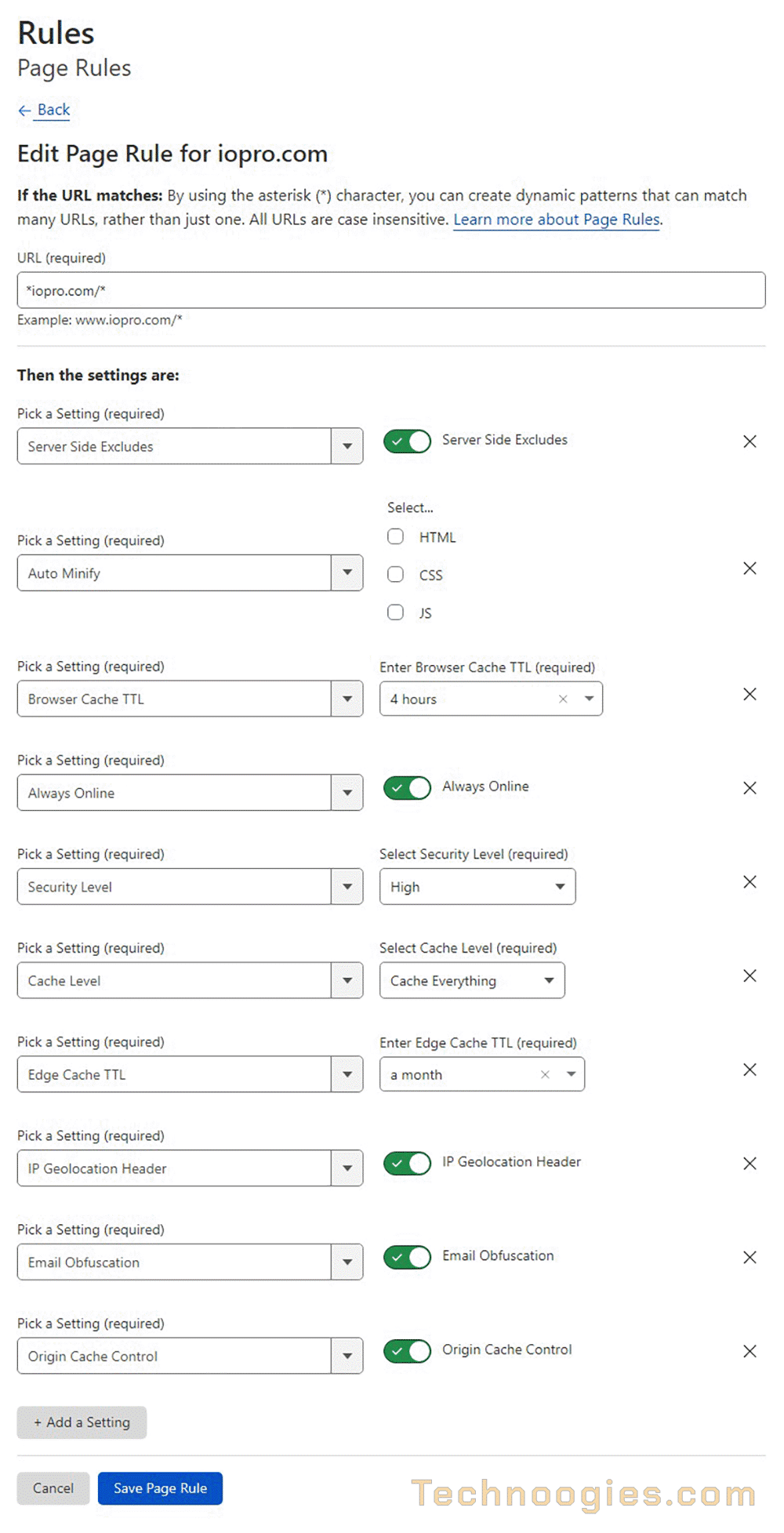
Rule 3 URL = *technoogies.com/*
Rule 3 is going to use cache for everything it can that the first two rules don’t, because if one of the first two rules are used, then the default setting of caching level of “Standard” will be applied. If you are running WooCommerce, then set the Cache Level to Standard instead of Cache Everything.
I’ve updated Rule 3 to include some of Cloudflare’s recommendations for WordPress, plus recommendations from the Cloudflare user community.
Rule 3 Settings
- Server Side Excludes: ON
- Auto Minify: Unchecked, HTML – CSS – JS ( Cloudflare default = Checked )
- Browser Cache TTL: 4 hours – ( Your preference )
- Always Online: ON (Cloudflare Default = ON)
- Security Level: MEDIUM
- Cache Level: CACHE EVERYTHING (Use STANDARD for WooCommerce )
- Edge Cache TTL: 1 Month – ( Your preference )
- IP Geolocation Header: ON
- Email Obfuscation: ON
- Origin Cache Control: ON
In Summary
Some of you will have other needs. Mine are simple for technoogies.com. There are those who suggest you try Rocket Loader. If you have time to kill and your site isn’t mission critical, knock yourself out, but remember what I said, Rocket Loader is nothing but trouble for WordPress. Also, if you’re using a caching or minification plugin already, you’re going to have to do some testing to figure out what works best. Sometimes using just Cloudflare minification is fastest and sometimes you can leave both on, but both minification systems on at the same time will sometimes break things and they’re performing the same function. You will have more control on the WordPress end rather than Cloudflare, so minification in your WordPress install is best if you need to exclude certain items from themes and plugins.
There is a theory though that pre-minification prior to Cloudflare minification will speed up the minification side on Cloudflare and possibly remove dead weight that Cloudflare will miss. I don’t know, but it could have merit.
If you’re site has complexity that this article is not sufficient for to help you impliment Cloudflare on your WordPress site, you might want to consider finding a Cloudflare expert in Toptal.
Last note – Never trust your browser, even if you cleared cache. If you changed something, cleared browser cache, and it looks unchanged, close the browser and reopen it. I’ve waisted many, many hours not doing this simple step.
Skip the Tutorial and Download the Plugin?
Cloudflare – WordPress plugin | WordPress.org
By using the Cloudflare plugin the settings are preset in the domain for you. You still have to setup the Cloudflare account and DNS first. You’ll also need your account username, the Global API key, or create a custom WordPress API key for the domain. They have a template for the WordPress centric API settings.
Cloudflare Settings via Plugin
- SSL/TLS encryption mode is Full
- Auto Minify, JavaScript, CSS, HTML, is enabled on all
- Brotli Compression = On
- Rocket Loader™ = Off
- Caching Level = Standard
- Browser Cache TTL = 4 hours
- Always Online™ = On
- IPv6 Compatibility = On
- IP Geolocation = On
- Email Address Obfuscation = On
- Server-side Excludes = On
- Hotlink Protection = Off
There are no Page Rules created when using the plugin and that’s the whole of it. You can use the plugin and still go in after enabling it and create the page rules, so why bother with the plugin then? One advantage to the plugin is that is sets all of the other settings for you so that Cloudflare will be optimized for WordPress. It’s probably quicker to set these yourself and save your WordPress site from having one more extra plugin. Oh be wise!
All Page Rule Options Defined
| Setting | Description | Plans |
|---|---|---|
| Always Online | Turn on or off the Always Online feature of the Cloudflare Caching app. Learn more. Disable this for sections of your site that should never return cached data, such as APIs or payment/cart pages. | All |
| Always Use HTTPS | Turn on or off the Always Use HTTPS feature of the Edge Certificates tab in the Cloudflare SSL/TLS app. If enabled, any http:// URL is converted to https:// through a 301 redirect. If this option does not appear, you do not have an active Edge Certificate. | All |
| Auto Minify | Indicate which file extensions to minify automatically. Learn more. | All |
| Automatic HTTPS Rewrites | Turn on or off the Cloudflare Automatic HTTPS Rewrites feature of the Edge Certificates tab in Cloudflare SSL/TLS app. Learn more. | All |
| Browser Cache TTL | Control how long resources cached by client browsers remain valid. The Cloudflare UI and API both prohibit setting Browser Cache TTL to 0 for non-Enterprise domains. Learn more. | All |
| Browser Integrity Check | Inspect the visitor’s browser for headers commonly associated with spammers and certain bots. Learn more. | All |
| Bypass Cache on Cookie | Bypass Cache and fetch resources from the origin server if a regular expression matches against a cookie name present in the request. If you add both this setting and the Cache On Cookie setting to the same page rule, Cache On Cookie takes precedence over Bypass Cache on Cookie. See Additional details below to learn about limited regular expression support. | Business Enterprise |
| Cache By Device Type | Separate cached content based on the visitor’s device type. Learn more. | Enterprise |
| Cache Deception Armor | Protect from web cache deception attacks while still allowing static assets to be cached. This setting verifies that the URL’s extension matches the returned Content-Type. Learn more. | All |
| Cache Key | Also referred to as Custom Cache Key. Control specifically what variables to include when deciding which resources to cache. This allows customers to determine what to cache based on something other than just the URL. Learn more. | Enterprise |
| Cache Level | Apply custom caching based on the option selected: Bypass – Cloudflare does not cache. No Query String – Delivers resources from cache when there is no query string. Ignore Query String – Delivers the same resource to everyone independent of the query string. Standard – Caches all static content that has a query string. Cache Everything – Treats all content as static and caches all file types beyond the Cloudflare default cached content. Respects cache headers from the origin web server unless Edge Cache TTL is also set in the Page Rule. When combined with an Edge Cache TTL > 0, Cache Everything removes cookies from the origin web server response. | All |
| Cache on Cookie | Apply the Cache Everything option (Cache Level setting) based on a regular expression match against a cookie name. If you add both this setting and Bypass Cache on Cookie to the same page rule, Cache On Cookie takes precedence over Bypass Cache on Cookie. | Business Enterprise |
| Cache TTL by Status Code | Enterprise customers can set cache time-to-live (TTL) based on the response status from the origin web server. Cache TTL refers to the duration of a resource in the Cloudflare network before being marked as stale or discarded from cache. Status codes are returned by a resource’s origin. Setting cache TTL based on response status overrides the default cache behavior (standard caching) for static files and overrides cache instructions sent by the origin web server. To cache non-static assets, set a Cache Level of Cache Everything using a Page Rule . Setting no-store Cache-Control or a low TTL (using max-age/s-maxage) increases requests to origin web servers and decreases performance. Learn more. | Enterprise |
| Disable Apps | Turn off all active Cloudflare Apps. | All |
| Disable Performance | Turn off: Auto Minify Rocket Loader Mirage Polish | All |
| Disable Railgun | Turn off the Railgun feature of the Cloudflare Speed app. | Business Enterprise |
| Disable Security | Turn off: Email Obfuscation Rate Limiting (previous version) Scrape Shield Server Side Excludes URL (Zone) Lockdown WAF managed rules (previous version) | All |
| Edge Cache TTL | Specify how long to cache a resource in the Cloudflare edge network. Edge Cache TTL isn’t visible in response headers. The minimum Edge Cache TTL depends on plan type: Free – 2 hours Pro – 1 hour Business – 1 second Enterprise – 1 second | All |
| Email Obfuscation | Turn on or off the Cloudflare Email Obfuscation feature of the Cloudflare Scrape Shield app. Learn more. | All |
| Forwarding URL | Redirects one URL to another using an HTTP 301/302 redirect. See Understand wildcard matching and referencing above. | All |
| Host Header Override | Apply a specific host header. Learn more. | Enterprise |
| IP Geolocation Header | Cloudflare adds a CF-IPCountry HTTP header containing the country code that corresponds to the visitor. | All |
| Mirage | Turn on or off Cloudflare Mirage of the Cloudflare Speed app. Learn more. | Pro Business Enterprise |
| Opportunistic Encryption | Turn on or off the Cloudflare Opportunistic Encryption feature of the Edge Certificates tab in the Cloudflare SSL/TLS app. Learn more. | All |
| Origin Cache Control | Origin Cache Control is enabled by default for Free, Pro, and Business domains and disabled by default for Enterprise domains. | All |
| Origin Error Page Pass-thru | Turn on or off Cloudflare error pages generated from issues sent from the origin server. If enabled, this setting triggers error pages issued by the origin. | Enterprise |
| Polish | Apply options from the Polish feature of the Cloudflare Speed app. Learn more. | Pro Business Enterprise |
| Query String Sort | Turn on or off the reordering of query strings. When query strings have the same structure, caching improves. Learn more. | Enterprise |
| Resolve Override | Change the origin address to the value specified in this setting. Learn more. | Enterprise |
| Respect Strong ETags | Turn on or off byte-for-byte equivalency checks between the Cloudflare cache and the origin server. Learn more. | Enterprise |
| Response Buffering | Turn on or off whether Cloudflare should wait for an entire file from the origin server before forwarding it to the site visitor. By default, Cloudflare sends packets to the client as they arrive from the origin server. | Enterprise |
| Rocket Loader | Turn on or off Cloudflare Rocket Loader in the Cloudflare Speed app. Learn more. | All |
| Security Level | Control options for the Security Level feature from the Security app. Learn more. | All |
| Server Side Excludes | Turn on or off the Server Side Excludes feature of the Cloudflare Scrape Shield app. Learn more. | All |
| SSL | Control options for the SSL feature of the Edge Certificates tab in the Cloudflare SSL/TLS app. Learn more. | All |
| True Client IP Header | Turn on or off the True-Client-IP Header feature of the Cloudflare Network app. Learn more. | Enterprise |
| Web Application Firewall (previous version) | Turn on or off WAF managed rules as defined in Security > WAF > Managed rules. Learn more. You cannot enable or disable individual WAF managed rules via page rules. | Pro Business Enterprise |
Cloudflare Page Rule Resources
- What settings are applied when I click “Optimize Cloudflare for WordPress” in Cloudflare’s WordPress plugin? (I don’t use this plugin and set these myself, but the info is good)
https://support.cloudflare.com/hc/en-us/articles/227342487-What-settings-are-applied-when-I-click-Optimize-Cloudflare-for-WordPress-in-Cloudflare-s-WordPress-plugin- - Understanding and Configuring Cloudflare Page Rules (Page Rules Tutorial)
https://support.cloudflare.com/hc/en-us/articles/218411427-Understanding-and-Configuring-Cloudflare-Page-Rules-Page-Rules-Tutorial- - Using Wildcards in Page Rules (The ‘Forwarding URL’ setting is not available for the free page rules, but the other options are.)
https://community.cloudflare.com/t/using-wildcards-in-page-rules/140675 - Caching Static HTML with WordPress/WooCommerce (This will NOT work with the freebie rules.)
https://support.cloudflare.com/hc/en-us/articles/236166048-Caching-Static-HTML-with-WordPress-WooCommerce


Leave a Reply